
Today we are introducing the Synaps Media MCP server. It lets an AI service that you already use, on your own account, look at and manage your Synaps Media sites when you ask it to.
Most of you will never need it. The Panel and Ghost Admin work exactly as before. But some of you already do much of your daily work in an AI service, and have asked whether it could check a domain, make a backup or find a post for you. Now it can.
 Synaps Media
Check our MCP product page
First, what doesn't change
If you don't use AI, you don't need to do anything. We want that to be clear before anything else.
- It is off until you connect it. We don't switch it on for anyone.
- It adds no AI to your site, the Panel or Ghost Admin. Your readers and your team see nothing different.
- We don't send your data to any AI service. Your AI service only receives what it asks for through the connector to answer you, after you have signed in and allowed access.
- What happens to that data afterwards is up to your AI service. It is covered by that service's own privacy settings and policies. If this matters to you, read them before you connect.
- You can disconnect at any time, from your AI service's connector settings.
What it is, in plain words
MCP stands for Model Context Protocol. It is an open standard that lets an AI service use tools offered by other services, with your permission. The Synaps Media MCP server is a set of tools for your own Synaps Media account.
When you ask your AI service something like "Is my domain connected correctly?", it can use those tools to look, and then answer from what it finds.
There is nothing to install. You add one web address in your AI service, sign in with your Synaps Media account and approve access. It works the same way on a laptop, a phone or a shared computer, so you don't need to be technical to use it. It works with any AI service that supports MCP connectors.
Most of what you do in the Panel and Ghost Admin
The connector covers the everyday work of running your sites:
- Sites. See your sites and their status, check whether a site name is free, and create a new site.
- Domains and DNS. Connect or remove a custom domain, check its status, choose the primary domain, and read or change DNS records for domains managed by Synaps Media.
- Email. Create and manage email inboxes and forwarders on your domain.
- Backups. Make a backup, see your existing ones and get a download link.
- Cache. Clear your site's cache.
- Analytics and search. Read your traffic numbers, and the settings and insights of Complete Search, where they are part of your plan.
- Your Ghost content. Through the Ghost Admin API: list and read posts, tags, authors and newsletters, and make changes when you ask for them.
A few things stay in the Panel, such as billing and plan changes.
A few examples
These are things you could type to your AI service, in your own words:
- "List my Synaps Media sites and tell me which ones have no custom domain yet."
- "Check if example.com is connected correctly to my site. If something is missing, tell me what to change."
- "Create an email forwarder so hello@example.com arrives in my personal inbox."
- "Make a backup of my site before I change the theme, and give me the download link."
- "Which pages got the most bot visits last week?" (Advanced Web Analytics is part of the Premium plan.)
- "Show me my draft posts and the tags they use."
- "Clear the cache for my site."
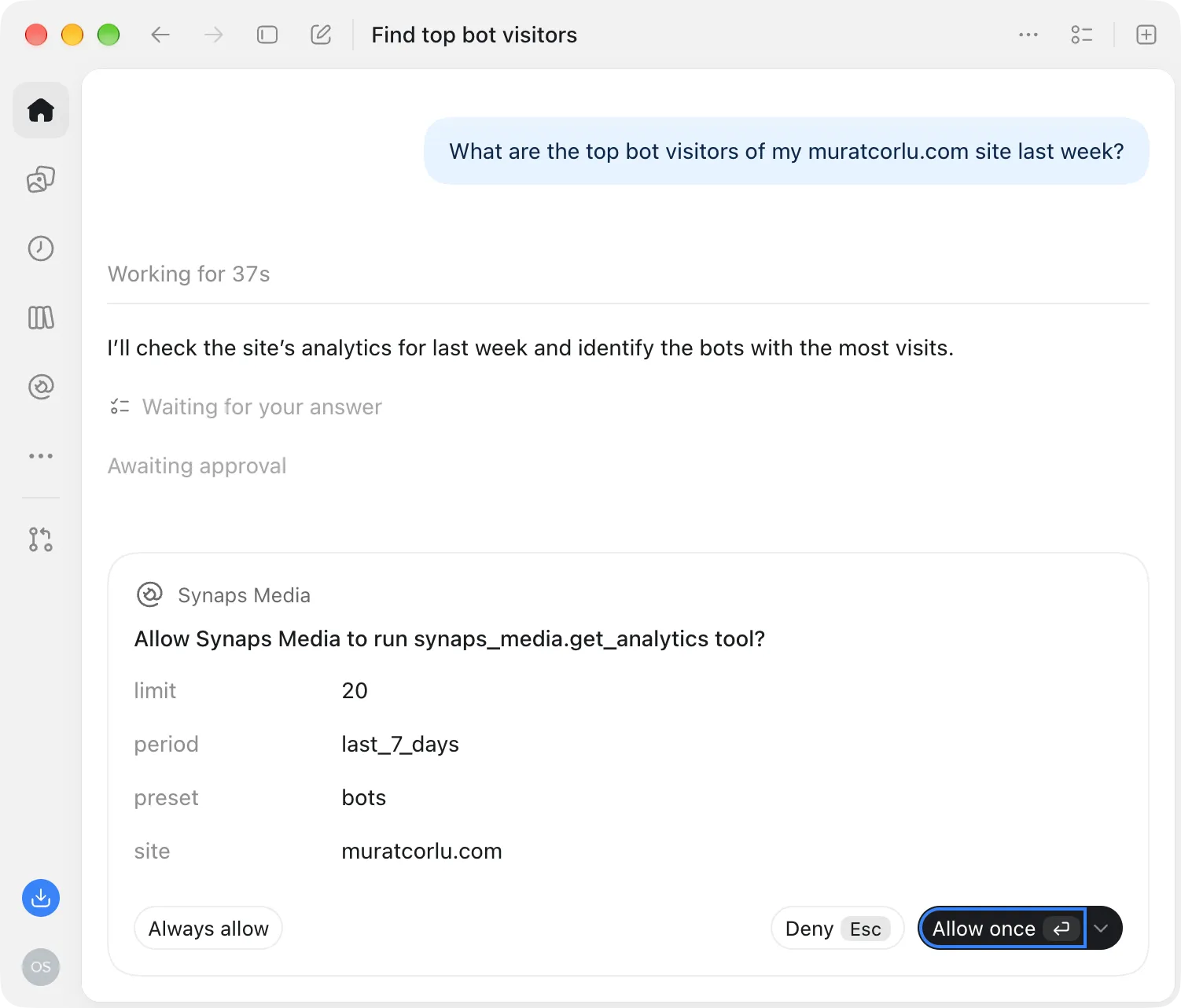
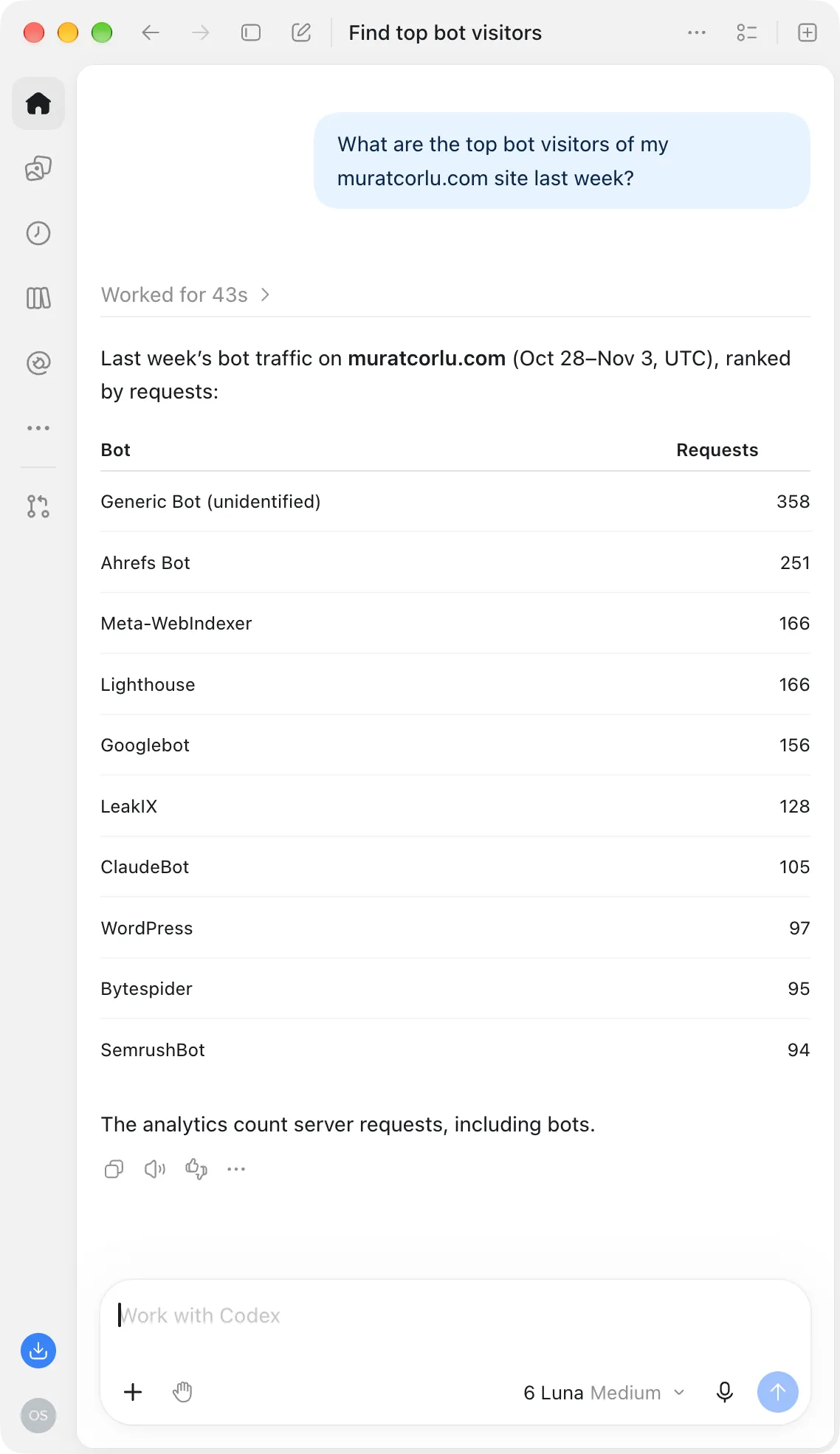
This is an example conversation. Your AI service may word things differently.
In your own language
You don't have to describe your site in English, or in technical terms. Write the way you normally write. Your AI service understands the request and answers in your language, and the connector works the same either way.
- "Maak een back-up van mijn site en geef me de downloadlink."
- "Sitemdeki alan adının doğru bağlanıp bağlanmadığını kontrol eder misin?"
How well a language is understood depends on your AI service. Your posts and settings stay exactly as you wrote them.
You stay in control
- You decide whether to connect, and which AI service to connect.
- You sign in with your Synaps Media account and approve access yourself.
- It only works on your own account. The connector can do what its tools allow, and nothing else.
- You can disconnect at any time in your AI service.
AI services can make mistakes, so we suggest treating a change made by chat like any other change to your site:
- If your AI service lets you approve each action before it runs, keep that setting on, especially for anything that changes or deletes.
- Ask it to tell you what it is about to change before it does it.
- Ask for a backup before bigger changes.
- Be careful with text from sources you don't trust. Content you paste into a chat can contain instructions meant to mislead an AI service.
Free for every Synaps Media customer
The MCP server is free for all Synaps Media customers. There is no add-on and no extra fee.
Your AI service is separate from Synaps Media. What it offers, and what it costs, is up to that service.
Getting started
- Copy the web address of the server:
https://mcp.synapsmedia.com/mcp - In your AI service, open the place where you add connectors or MCP servers, and paste the address. The name of this setting differs from one service to another, and our help article walks you through it.
- Sign in with your Synaps Media account and approve access. Then try something simple, such as "List my Synaps Media sites."
The step-by-step guide is in the Help Center: Manage your Synaps Media sites with your AI service.
This is new
The MCP server is a new feature, and we will keep improving it. If something doesn't work the way you expect, or you would like it to do more, tell us through the chat in the Panel or the Help Center. Your feedback decides what we build next.