

Ghost websites are in English by default. If you publish in a language other than English, first thing you need to do is set the Publication Language in Settings section of your Ghost Admin.
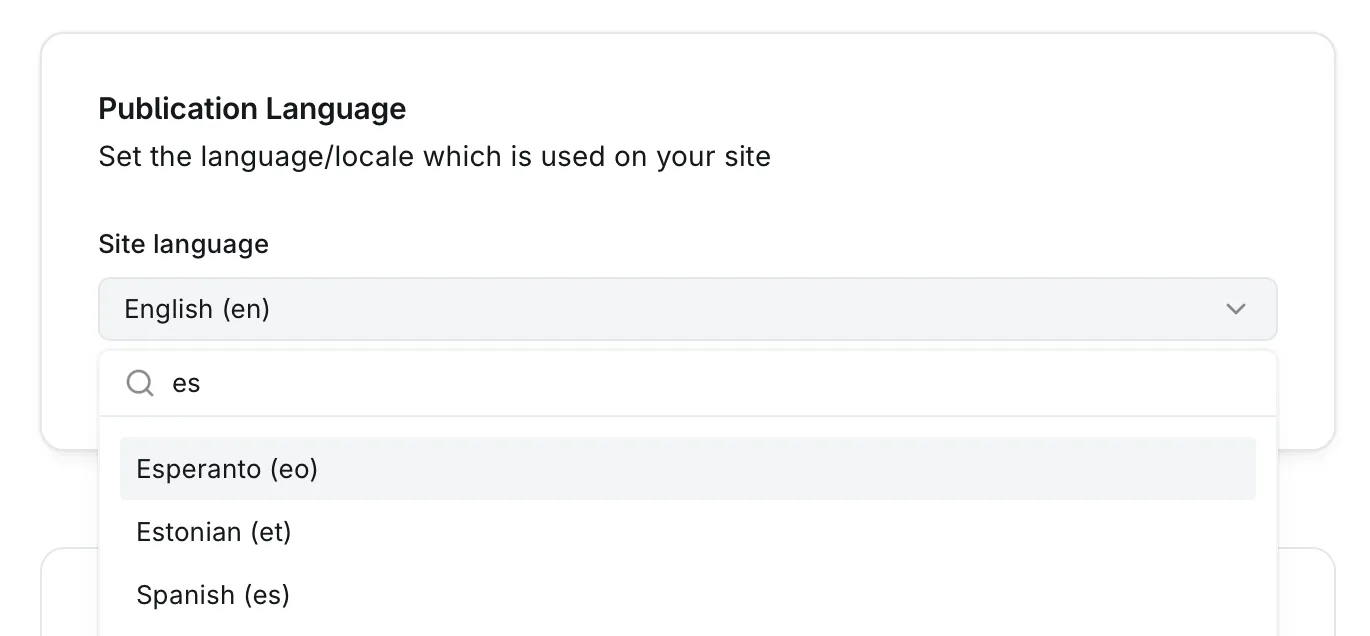
When you set this, many parts of your website will be automatically translated to your language. Some themes don't support every language or don't support translations at all. If so, editing your theme is not very complicated. Here is a step-by-step guide to fix non-translated texts:
1. Open theme code editor
Go to "Settings -> Theme", click the three-dot menu of your active theme, and pick "Edit code"
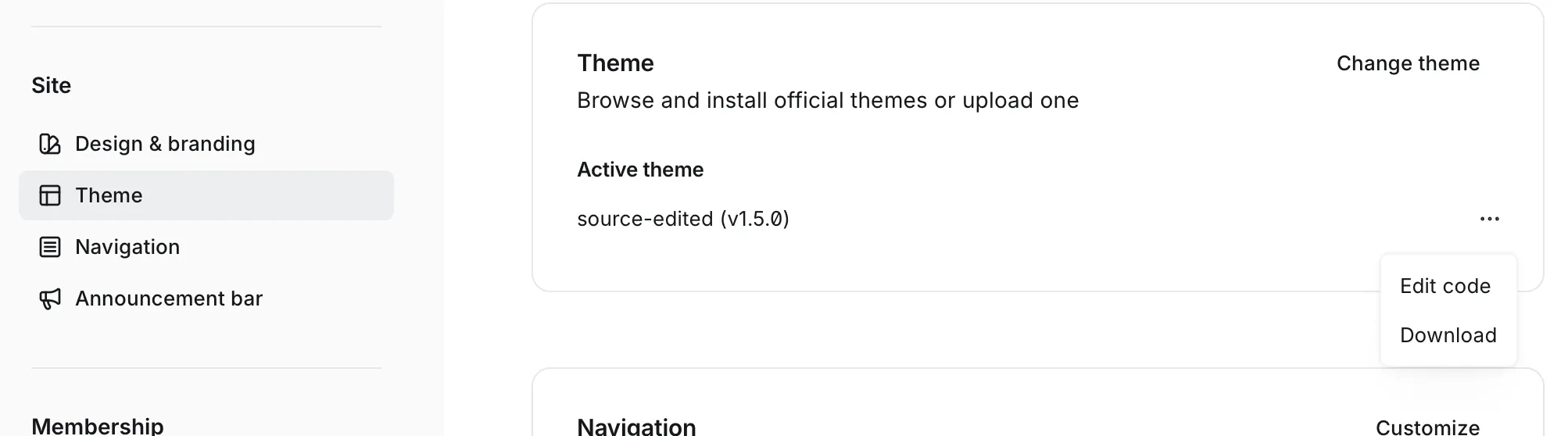
2. Edit your language file
If you see a "locales" folder, that means your theme supports translations but maybe is missing your language. Open folder and look for {your language code}.json file, like "es.json". If you don't see a file for your language, copy the "en.json" file and rename the new file as your target language. Find the untranslated text in it and write translated version to the right side of it. Example:
{
   "Subscribe": "Suscríbete"
}
If you don't see a "locales" folder, that means your theme doesn't support translations. In this case you need to find the texts you need to translate in ".hbs" files. There are template files that generates HTML codes for your website. You need to open them in the code editor, find the text you need to translate, and just replace the English text with your desired text.
3. Save the changes
Press "Save" to apply changes in the code editor. Once saved, you should see your website with translated texts.