
Migrating your current Ghost site to Synaps Media may require several steps according to your site's content and features. Let's look at them in order.
Preparing your data
According to how much content you have in your current site, you have different options to migrate to Synaps Media. Let's list the options with the contents they cover:
1. Ghost Export/Import
Ghost has built-in Exporter. You can export your content from your Ghost Admin Panel, on the menu Settings -> Advanced -> Import/Export -> Export -> Export content and settings.
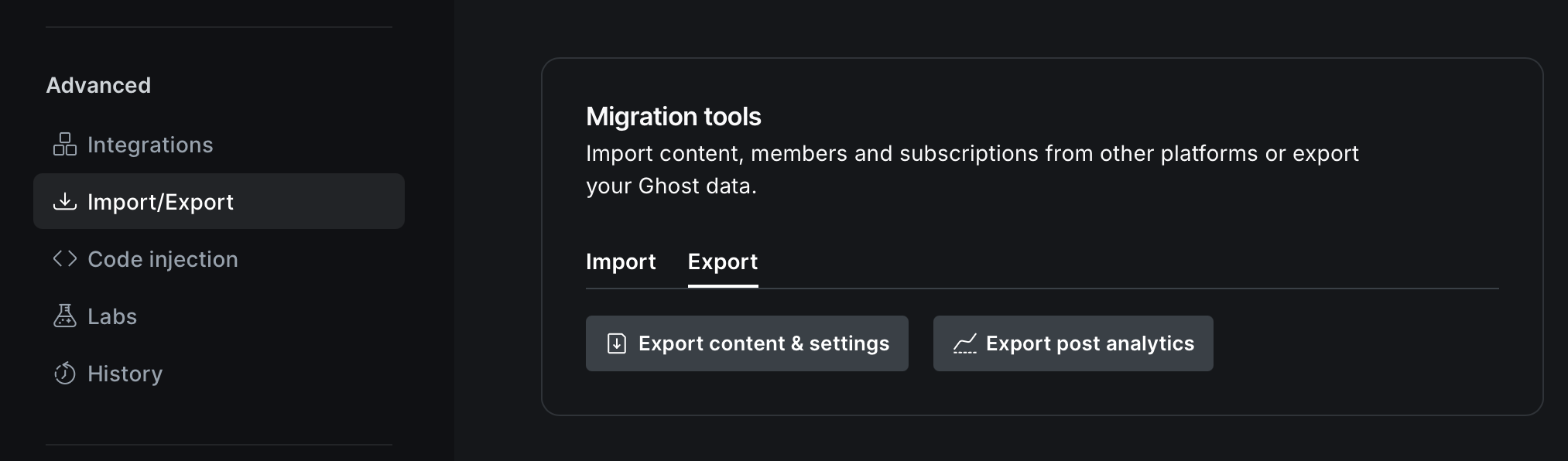
This export will provide you a file that contains:
- All of your pages and posts (including drafts)
- All of your settings
But it will not include :
- You uploaded photos, videos, audio files and other files: If you self-host your Ghost these files are located in your
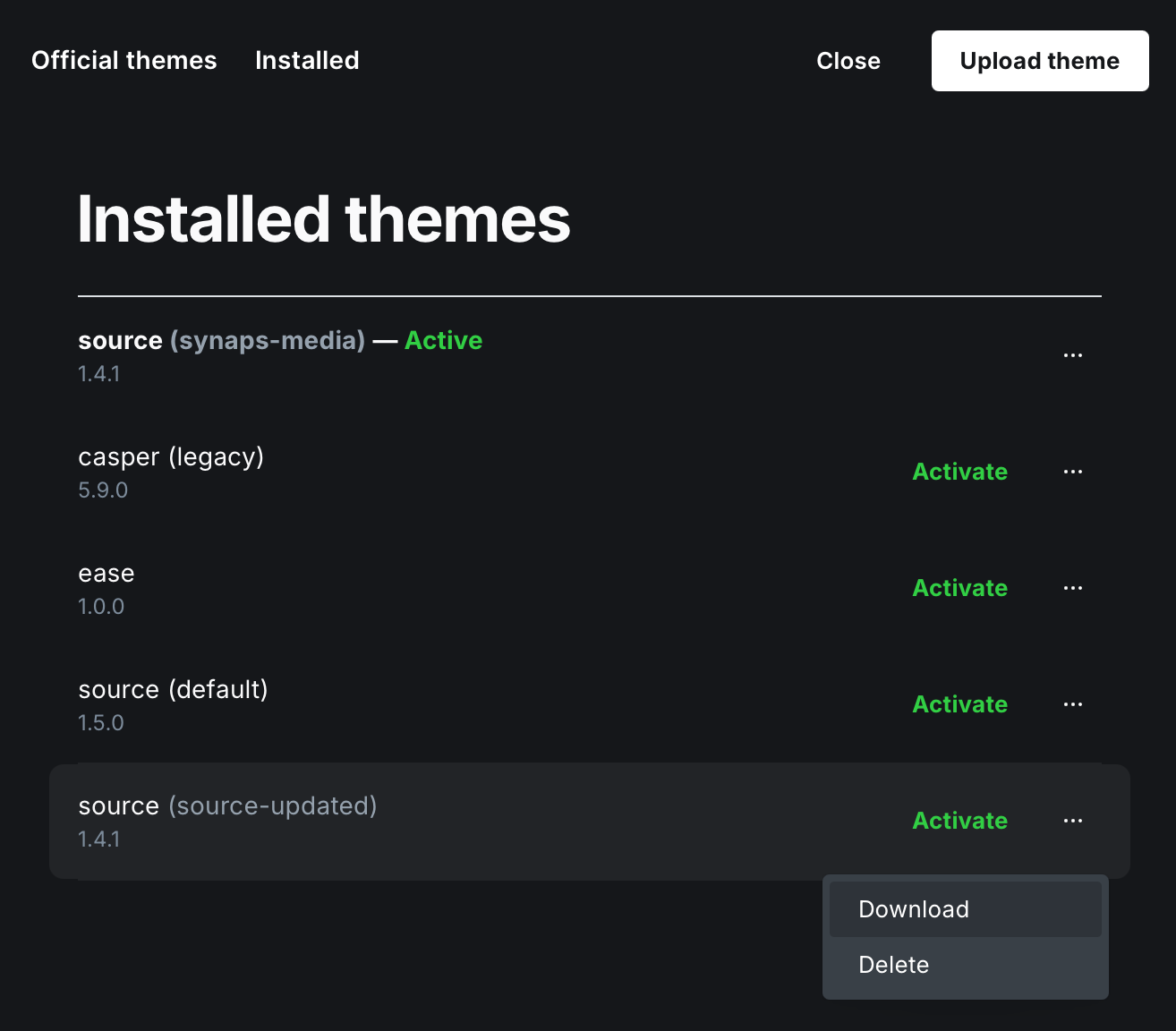
content/images,content/media, andcontent/filesfolders. If you use a managed hosting service, you can ask a copy of your content folder from your service provider. - Your custom (or customized) themes: You can download themes from your theme selection screen. Go to Settings -> Site -> Theme -> Change Theme -> Installed tab. Then you can download your themes with three dots menus.
- Your custom routes (routes.yml), and custom redirections (redirect.yml): You can download them from Settings -> Labs section. If you didn't make any customization, you don't need to migrate them.
- Your members: You can take an export of your members from Members page on Ghost Admin.

- Your member comments: Exporting member comments current only possible with a database backup. If you have any member comments you want to migrate, please check next section.
- Your analytics data
- You Social Web data
2. Database and Content folder backup
If you self-host your current Ghost site, by having a full MySQL backup and a copy of your Ghost's content folder, you'll have a full backup of your Ghost site in hand. If you use another managed service, you can ask this from your service provider. (In Synaps Media, you can download this backup from our panel).
This backup will contain:
- All of your pages and posts (including drafts)
- All of your settings
- Your custom themes
- Your custom redirect and route configurations
- Your uploaded files
- Your members
- Your member comments
Currently, the items below are not included with this backup as well:
- Your analytics data: Analytics data is stored on Tinybird. More information about migrating analytics data will be provided soon.
- Social Web data: Social Web (ActivityPub data is also stored in a separate server. Migration scenarios are not clear yet for this service.
Preparing your Stripe migration (Optional)
If you have paid subscribers, to properly migrate them to your new Synaps Media site, you need to take a few steps in order:
- Disable Stripe integration on your previous site before exporting member list
- Export member list (or take full backup)
- Enable Stripe integration on your Synaps Media site, with same Stripe account.
- Import your members to your new site.
Importing your all content
Content exported from Ghost Admin
If you exported content from your Ghost Admin, basically you will use same screens to import your content in your new Ghost Admin. Ghost Import/Export, themes, routes/redirections and members all can be imported with the same menu you get exports.
Uploaded files
If you have a copy of your content folder to import your images and files and if the total size of those folders are less then 100MB, you can try to zip your content folder by only including images, media and files folder in it, and then upload it to your Ghost Admin with the same importer that you use for content importing. Ghost will automatically detect those files and put them to your content folders.
Restoring from a full-site backup
If you have a database backup, or a large sized content folder, you can simply reach out us via support chat. We'll guide you to securely send your backup to us, and your site will be filled with the backup data soon.
If you hove different situations or still have questions, please don't hesitate to reach out with our support chat, or mail to support@synapsmedia.com.