
Protected API Keys are Ghost Admin API keys with extra safety controls. You can make a key read-only, limit it to specific IP addresses, set it to delete itself on a date, and see a log of every request made with it. This makes it safer to give Admin API access to third-party tools, services, and freelancers.
A protected key works exactly like a native Ghost Admin API key, so any tool that supports the Ghost Admin API supports it too.
Creating a protected key
- Log in to your Synaps Media Panel and open your site
- In the Tools section, click Protected API keys
- Click "Create a key" (or "Add" in the top right corner)
- Give the key a recognizable name, such as the name of the tool or person you're giving it to
- Choose an access level (see below)
- Optionally, add allowed IP addresses and an auto-delete date
- Click Save
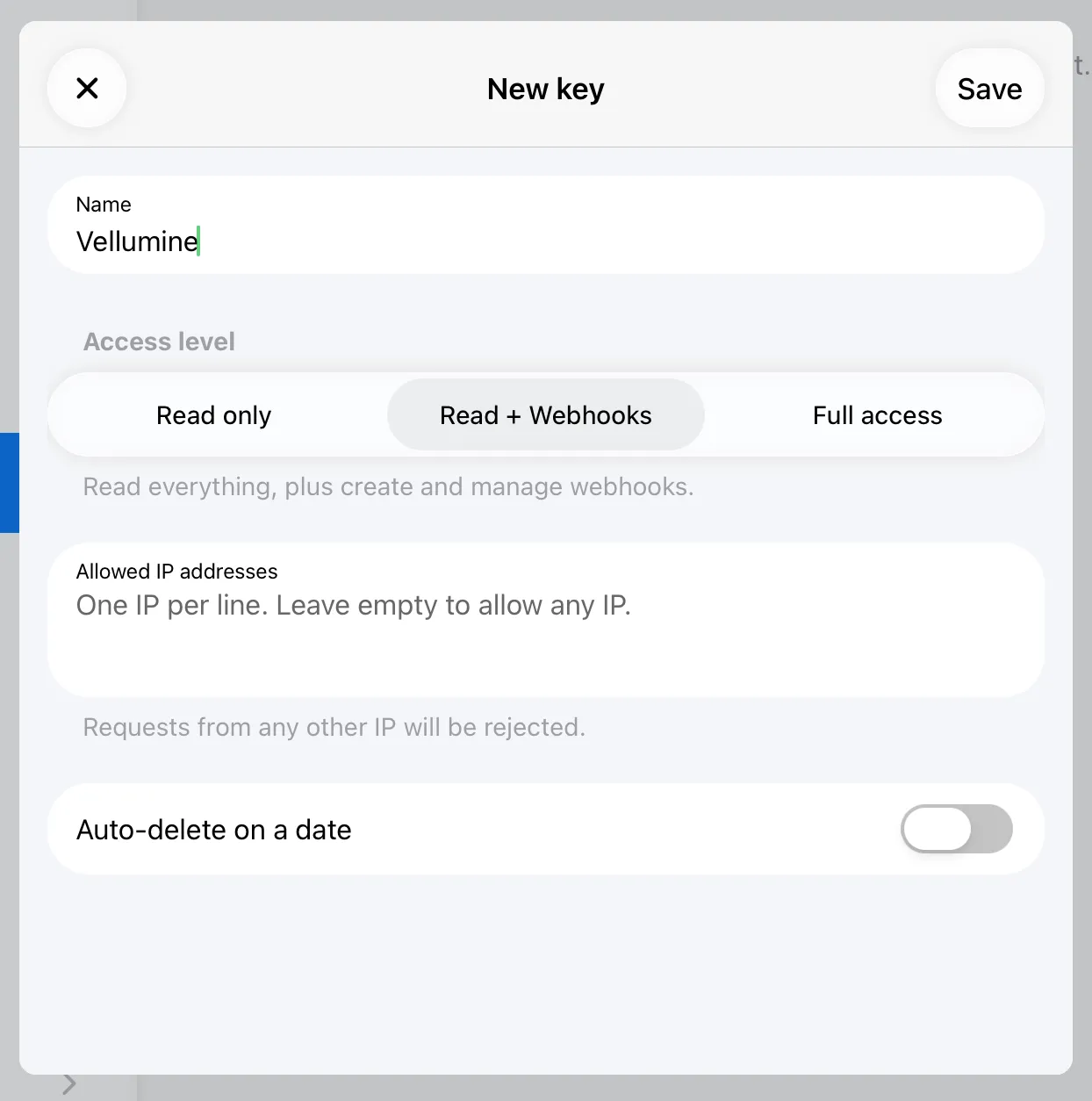
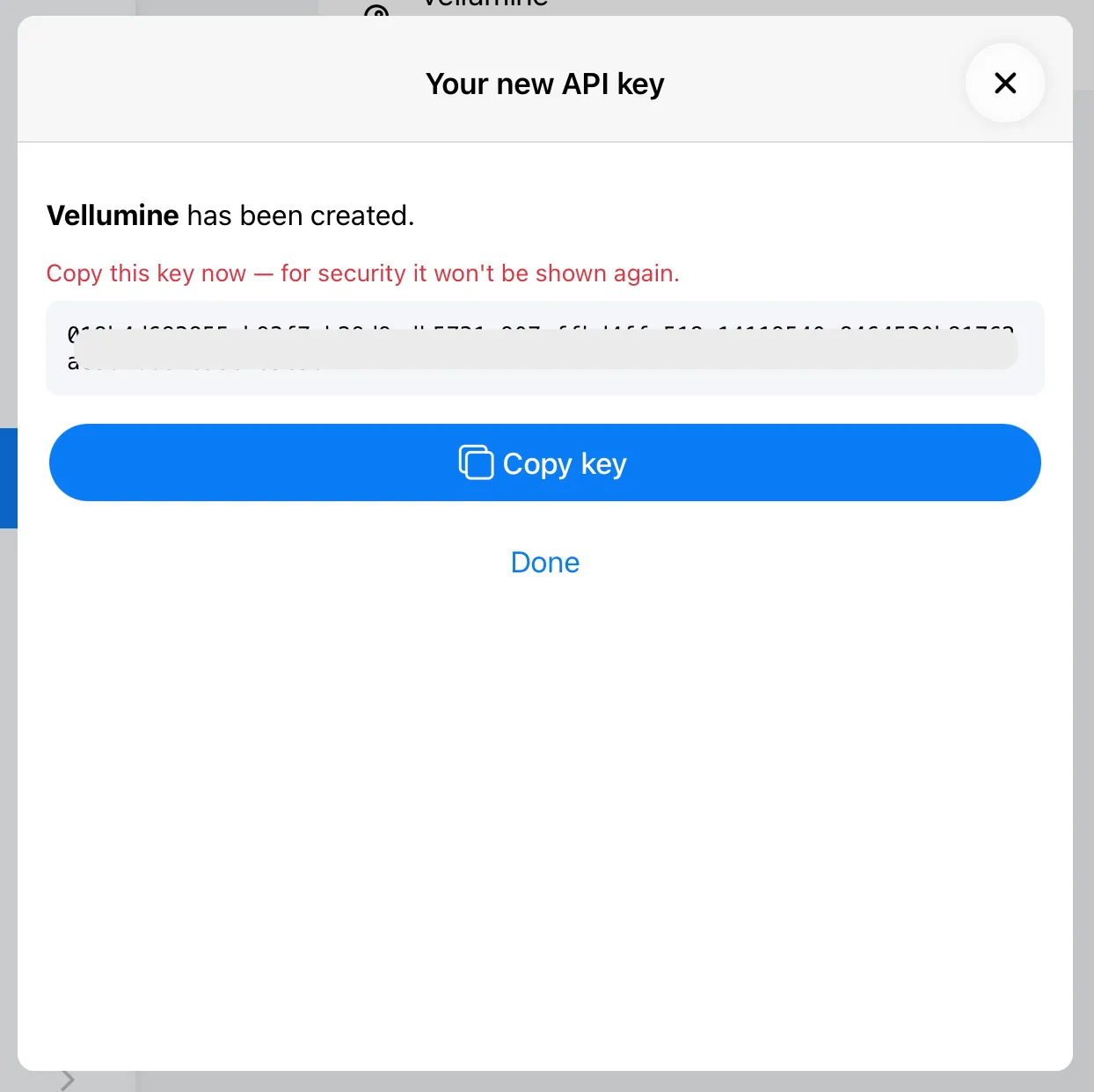
Your new key will be displayed once. Click "Copy key" and paste it into your integration right away.
Choosing an access level
- Read only: Only GET requests are allowed. The key can read posts, pages, tags, members, and other data, but it can't change anything. This is the right choice for most tools that display, analyze, or index your content.
- Read + Webhooks: Everything Read only allows, plus creating and managing webhooks. Choose this for services that need to stay in sync with your site, like search services that re-index a post when you update it.
- Full access: The same permissions as a native Ghost Admin API key. Only choose this for tools that need to create or change content, such as publishing tools or migration scripts. Even with full access, you still get IP restrictions, auto-delete, and request logs.
If you're not sure, start with Read only. If the tool needs more, you'll see rejected requests in the logs.
Restricting by IP address
Enter one IP address per line. Requests from any other IP address will be rejected. Leave the field empty to allow requests from any IP.
This works best for services with fixed server addresses, like your own server or a provider that publishes its IP addresses. Many automation platforms send requests from changing IP addresses, so check the tool's documentation before you enable this.
Setting an auto-delete date
Turn on Auto-delete on a date and pick a date. The key stops working on that date. This is useful for temporary access, like a freelancer working on your site for a month or a tool you're only trying out.
Using your key
Most tools ask for two things:
- Admin API URL: your site's URL, for example
https://yoursite.com - Admin API key: your protected key
No other changes are needed. Protected keys use the same id:secret format as native Ghost keys.
Viewing request logs
- Go to Tools → Protected API keys
- Swipe left on a key (or click it) and select Logs
Each entry shows the request method and endpoint, the date and time, the IP address, and whether the request was allowed or rejected. Click an entry to see its details.
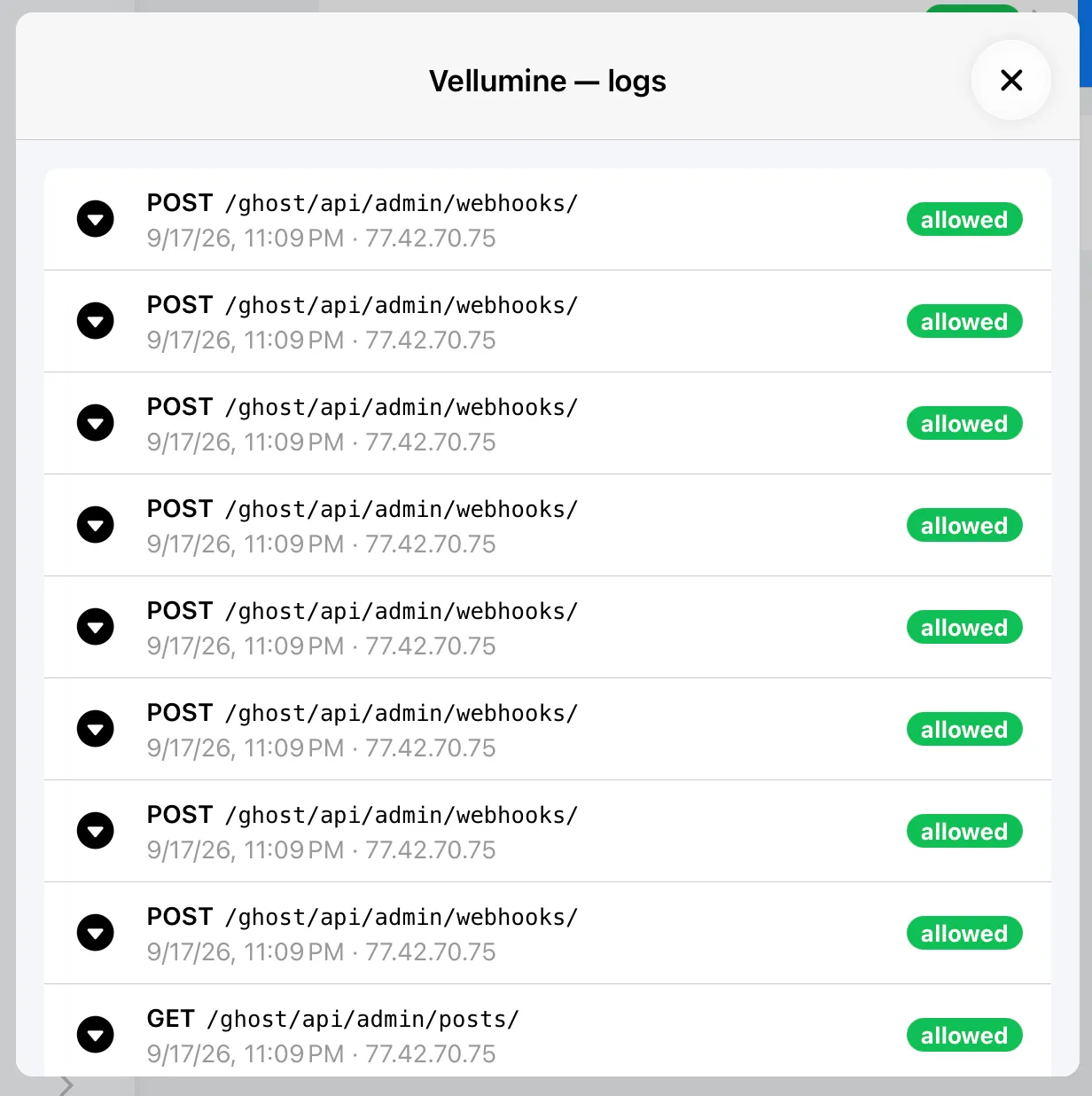
The logs are also a great way to learn what a tool actually does with your site.
Editing a key
Click on a key and select Edit. You can change its name, access level, allowed IP addresses, and auto-delete date. Changes apply immediately, and the key itself stays the same, so there's nothing to update in your integration.
Deleting (revoking) a key
- Swipe left on the key and select Delete
- Confirm the action
The key stops working immediately. This cannot be undone.
Deleted and expired keys are moved to Archived keys at the bottom of the page, so you can still see their logs.
Q&A
Can I use Protected API Keys with my plan?
Protected API Keys are available on all plans that include Custom Integrations (Premium and Early Adopter plans), at no extra cost. If your plan doesn't include Custom Integrations, you can upgrade from the panel at any time.
Why can't I see my protected key in Ghost Admin?
Protected keys are managed by Synaps Media, not by Ghost itself, so they don't appear under Settings → Integrations in Ghost Admin. You can see and manage them only in the Synaps Media Panel.
Is this the same Ghost Admin API?
Yes. Protected API Keys don't replace or copy the Ghost Admin API. They add a checkpoint in front of it. Each request is checked against the key's rules, and allowed requests are passed to your Ghost site's native Admin API unchanged. Everything in Ghost's Admin API documentation applies.
Do I need to change anything in my integration?
No. Protected keys use the same format as native Ghost Admin API keys, so official Ghost client libraries, Zapier, and other tools work with them as they are.
Does "Read only" keep my members' data private?
Not entirely. A read-only key can't change anything, but it can still read your members' data, including their email addresses. Only give keys to services you trust. Where member data is involved, make sure the service handles it in line with GDPR.
What happens when a request is not allowed?
The request is rejected before it reaches your Ghost site and is logged as rejected. The tool receives an "403 Forbidden" error response.
What happens to webhooks created with a key after I delete it?
When you delete a key, webhooks belongs to that key are also deleted automatically.
What happens when a key reaches its auto-delete date?
It stops working and moves to your archived keys, as if you had deleted it yourself.
I lost my key. Can I see it again?
No. For security, the full key is shown only once. Create a new key, update your integration, then delete the old one.
What about my existing custom integrations in Ghost Admin?
They keep working as before. We recommend replacing them with protected keys where possible. After switching a tool to a protected key, delete the old integration in Ghost Admin under Settings → Integrations.
Do I need a protected key for the Content API?
No. Content API keys are already read-only and only give access to published, public content. Protected keys are for the Admin API.
How long are request logs kept?
You can see request logs up to 30 days before,
If you have more questions, don't hesitate to reach out to our support.