
Passkeys are a modern, secure alternative to passwords. Instead of typing a password, your device (phone, laptop, or tablet) verifies your identity using biometrics (fingerprint or face scan) or your device PIN. Nothing is stored on Synaps Media's servers, and nothing can be stolen or phished.
Getting Started
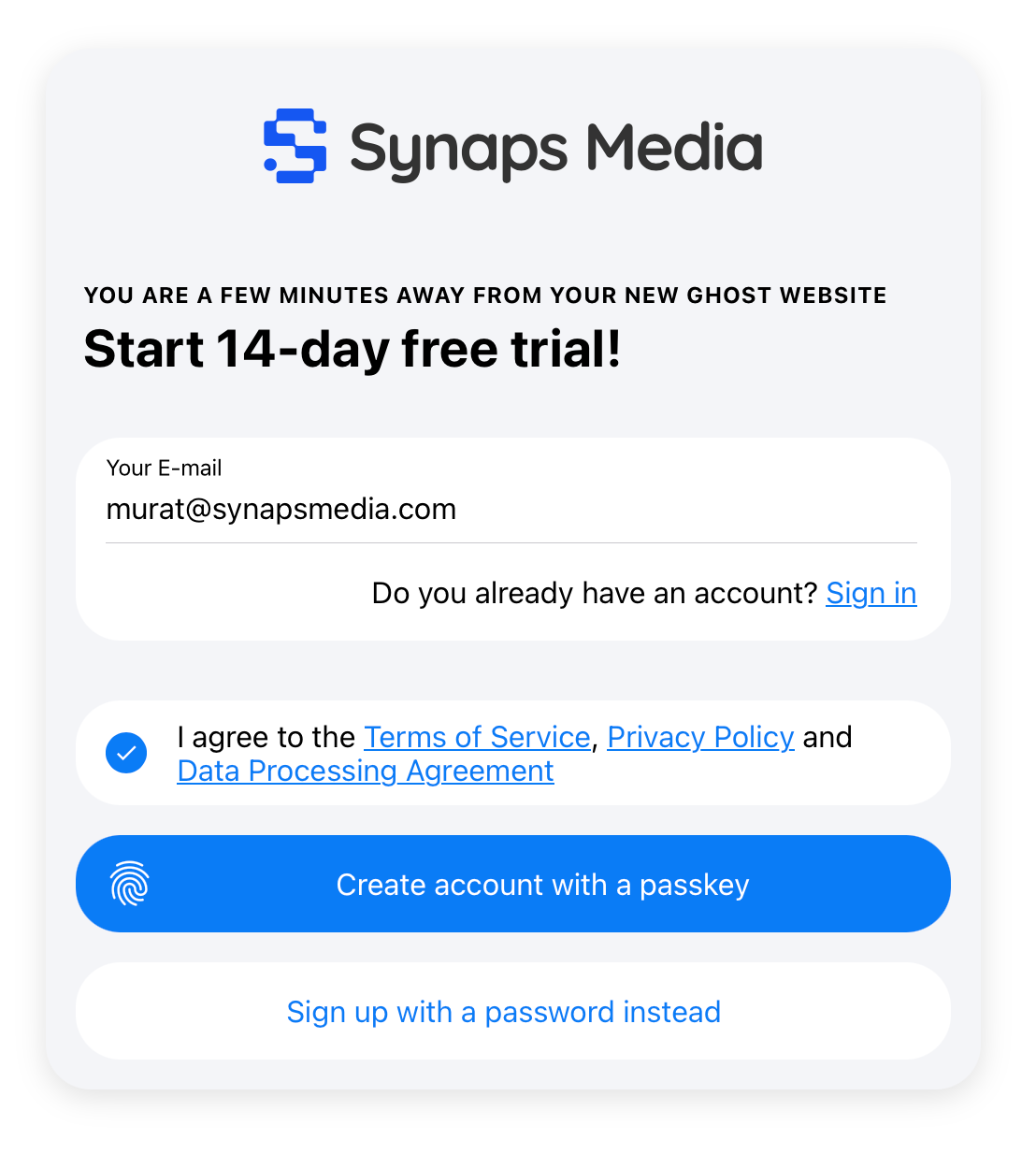
Registering with a Passkey
If you're creating a new Synaps Media account, you can set up a Passkey right during registration:
- Go to the registration page
- Enter your email address
- Click "Create account with a Passkey"
- Your browser will prompt you to authenticate — use your fingerprint, face, or device PIN
- Your account is created and you're logged in
Sign in with a Passkey
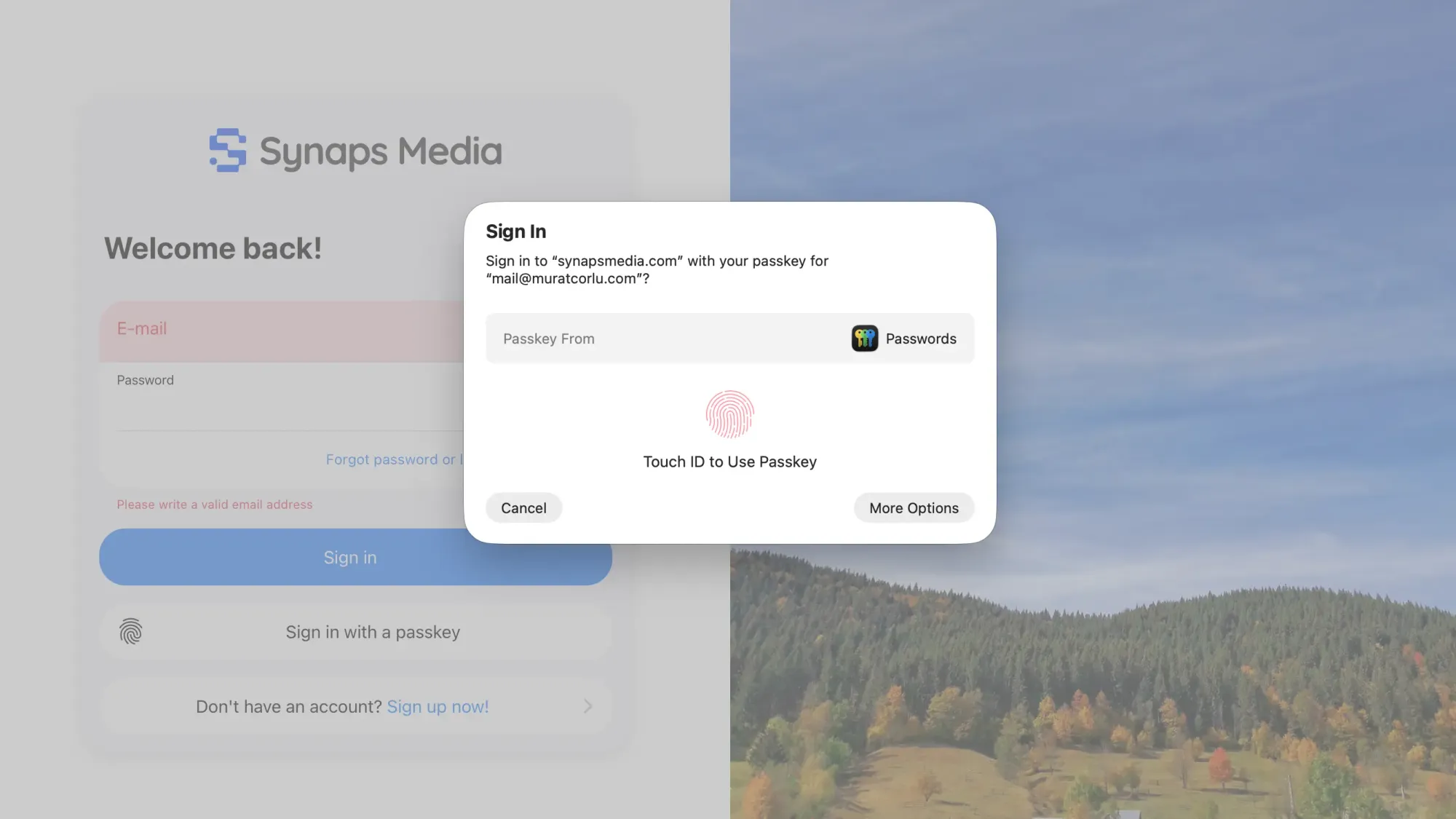
- Go to the Synaps Media login page
- Click "Sign in with a Passkey"
- Your browser will prompt you to authenticate
- You're in — no password needed
Managing Your Passkeys
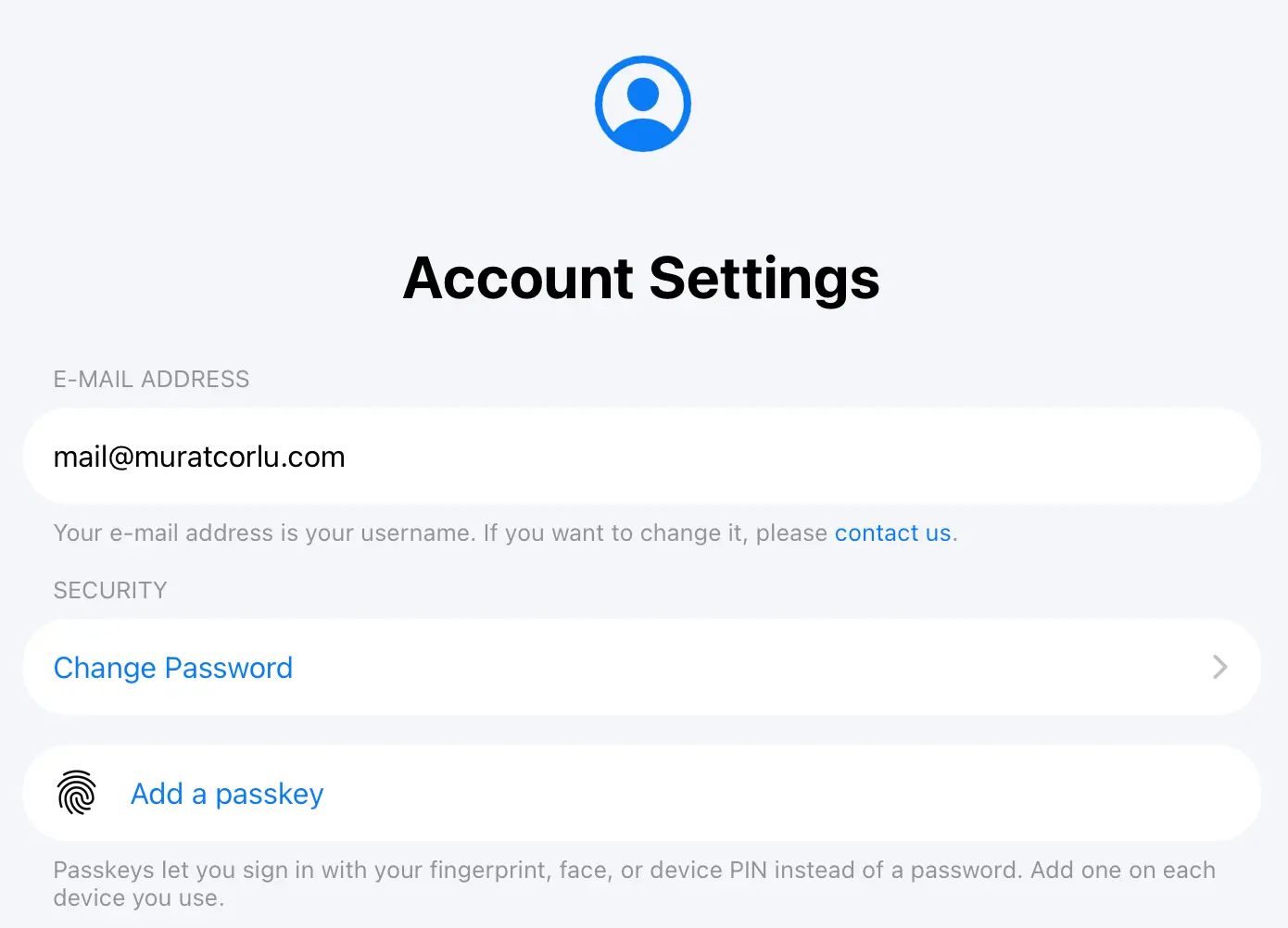
Adding a new Passkey
You can add Passkeys on multiple devices — recommended so you're never locked out if one device is unavailable.
- Log in to your account
- Go to Account Settings → Security
- Click "Add Passkey"
- Follow your browser's prompt to authenticate
- Give it a recognisable name (e.g. "MacBook" or "iPhone 15")
Removing a Passkey
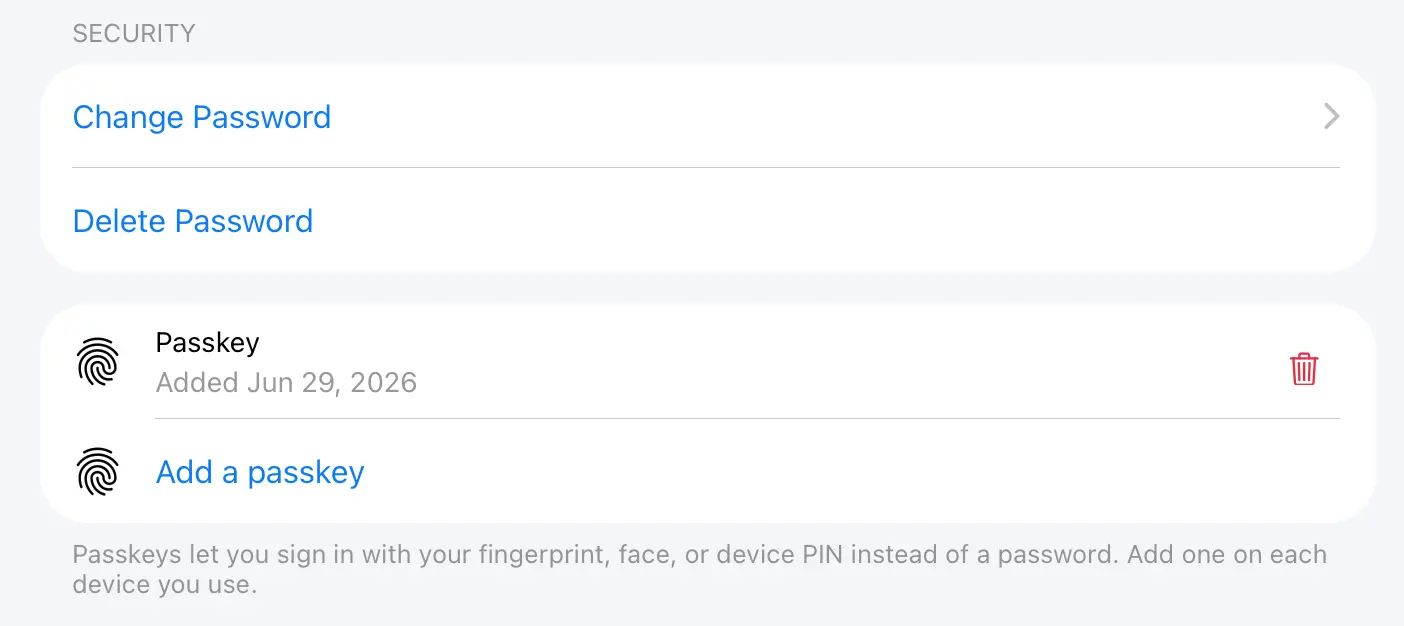
- Go to Account Settings → Security
- Find the Passkey you want to remove
- Click trash can icon next to it
- Confirm the action
Managing Your Password
Removing your password
Once you have a Passkey set up, we recommend removing your password entirely. This gives you the full security benefit of going passwordless.
- Go to Account Settings → Security
- Click "Delete Password"
- Confirm the action
Setting a password back
If you ever want to re-enable password login:
- Go to Account Settings → Security
- Click "Set a Password"
- Choose and confirm your new password
Q&A
Why are passwords bad?
Passwords have several fundamental weaknesses. They can be guessed, reused across sites, leaked in data breaches, or stolen through phishing attacks. Even strong passwords rely on you remembering them or trusting a password manager. Passkeys eliminate all of these risks — there's no secret string to steal or trick you into revealing.
What happens if I lose access to my Passkey device?
If you have Passkeys on multiple devices, simply use another device to log in and remove the lost one from Account Settings → Security.
If you've lost access to all your Passkeys and have no password set, you can still recover your account:
- Go to the login page and click "Forgot Password"
- Enter your account email address
- Open the reset link sent to your email
- Set a new password — this re-enables password login on your account
- Log in with your new password, then set up a fresh Passkey under Security Settings
- Once your new Passkey is working, you can remove the password again if you prefer
This is why keeping your account email address up to date is important.
Can I have Passkeys on multiple devices?
Yes. We recommend it. Adding your phone and laptop as separate Passkeys means you always have a backup way to log in.
Which devices and browsers support Passkeys?
Passkeys are supported on all modern browsers and devices, including Chrome, Firefox, Safari, and Edge on desktop, and iOS and Android on mobile. No plugins or apps required.
What if I signed up with a password and want to switch?
Go to Account Settings → Security, add a Passkey, and once it's working, click "Remove Password" to complete the switch. The whole process takes under a minute.
Is my Passkey stored on Synaps Media's servers?
No. Your Passkey lives on your device and never leaves it. Synaps Media only stores a public key — a piece of data that is useless without your device. This means even if our servers were ever compromised, your login credential cannot be stolen.
Does Synaps Media store my face scan or fingerprint?
No. In passkeys, those biometric data is used to generate your passkey on your device. Synaps Media doesn't store anything other your "public" key, which is useless without your device.